Bluetooth telephone coding and adaptation
Click any picture on this page to enlarge |
||||
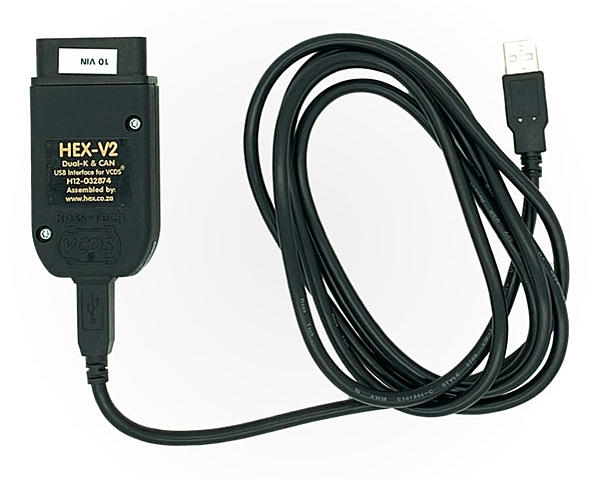
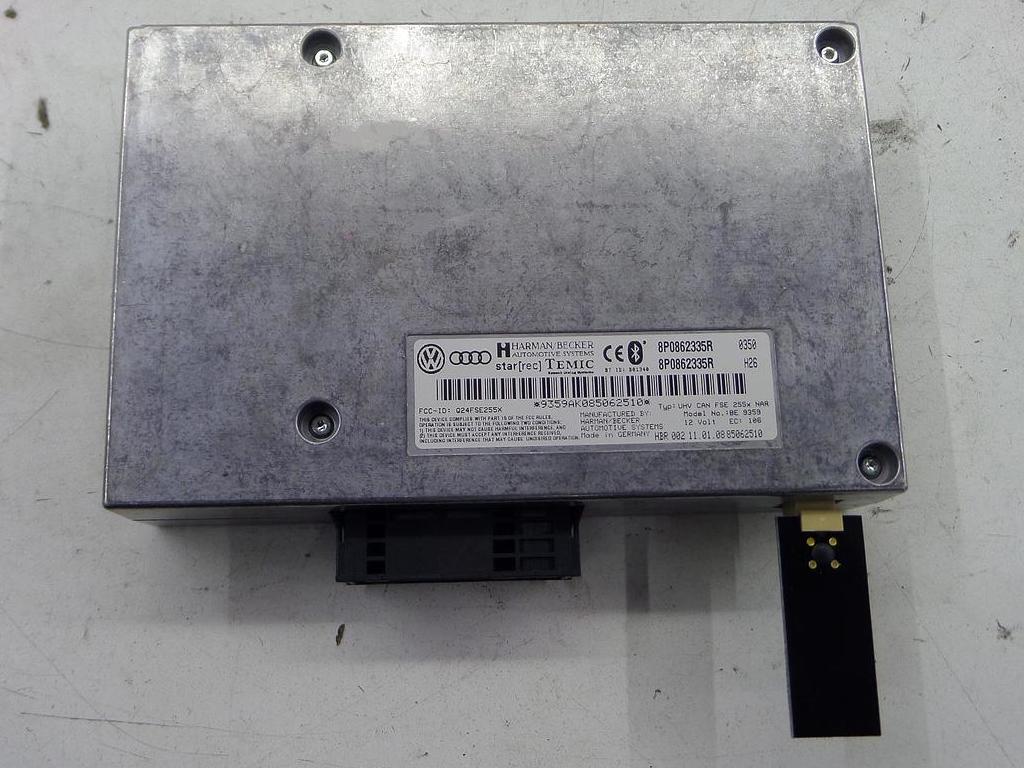
IntroductionTo make the 8P0 862 335 x Bluetooth telephone module work properly with the RNS-E, it must be soft coded properly. This is done via VCDS (aka VAG-COM), which is a special cable to be connected between your computer and the car's OBDII diagnostic port. The VCDS software application, running on your computer with the Windows operating system, allows you to perform a myriad of tasks, including soft coding, adaptation, reading and clearing of DTC (diagnostic trouble code), and much, much more. VCDS is developed specifically for the VAG family of cars. Generic OBDII scanners won't work because they do not perform brand-specific functions.
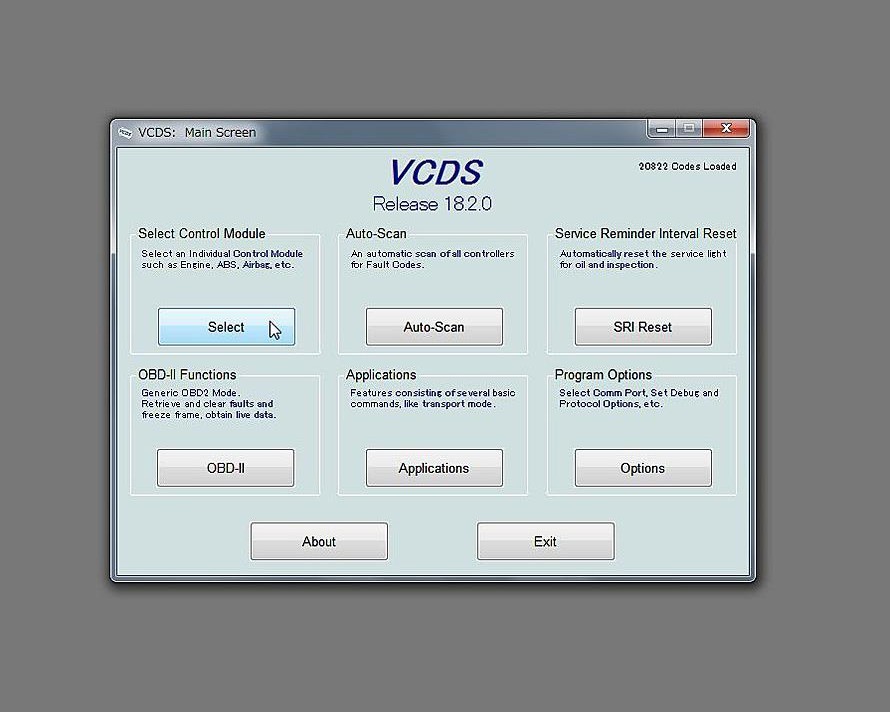
The first time you run VCDS, and each time the VCDS software is updated, you must first test the interface. Just follow the prompts on the screen. The rest of this document assumes that VCDS has been installed, connected, tested and is ready to use. Turn on your car's ignition to begin. Start the VCDS application, on the main VCDS window, under Select control module, click Select, then in the next screen, click 77-Telephone to access the telephone module. You will then be connected to the telephone module's onboard controller. Soft CodingThe telephone module's part number, description, current soft coding and workshop code is shown on the screen, along with other information. The soft code is 7 digits long, the first digit on the left is always 0. The settings for the remaining digits are described in the section below, as indicated by the question mark. The mandatory values are shown in bold font. Red font means "Don't use this!"For my B5 Audi S4, the correct coding is 0010777. To change the coding, click Recode - 07, then enter the desired 7-digit code into the pop-up box. You can leave the workshop code and importer number untouched. When you are done, click Do it! to set the new code.
    0?xxxxx: Brand
        0 = Audi
        1 = Seat
    0x?xxxx: Functions
        0 = Basic (for RNS-E basic/Radio)
        1 = Comfort (for RNS-E high/RNS-Low)
    0xx?xxx: Steering Wheel
        0 = No Multi-Function OR Standard Steering Wheel (Old Style without Menu Thumb Wheels)
        1 = Modular Steering Wheel (New Style with Menu Thumb Wheels)
    0xxx?xx: Installation List
        1 = Diagnostics via CAN
        2 = Multi-Function Steering Wheel, Diagnostics via CAN
        3 = Head Unit (e.g. RNS-E), Diagnostics via CAN
        4 = Multi-Function Steering Wheel, Head Unit (e.g. RNS-E), Diagnostics via CAN
        5 = Diagnostics via K-Line
        6 = Multi-Function Steering Wheel, Diagnostics via K-Line
        7 = Head Unit (e.g. RNS-E), Diagnostics via K-Line
        8 = Multi-Function Steering Wheel, Head Unit (e.g. RNS-E), Diagnostics via K-Line
    0xxxx?x: Language (Voice Control)
        0 = Voice Control OFF OR via external Device (e.g. RNS-E)
        1 = German (Not for North American modules)
        2 = English (UK) (Not for North American modules)
        3 = French (FR) Not for North American modules)
        4 = Italian (Not for North American modules)
        5 = Spanish (Not for North American modules)
        6 = Czech (Not for North American modules)
        7 = English (US)
        8 = French (CA)
        9 = Speaker dependent (Voice Commands inactive, Acoustic Name Selection active)
    0xxxxx?: Language (Display)
        0 = No Display
        1 = German (Not for North American modules)
        2 = English (UK) (Not for North American modules)
        3 = French (FR) (Not for North American modules)
        4 = Italian (Not for North American modules)
        5 = Spanish (Not for North American modules)
        6 = Czech (Not for North American modules)
        7 = English (US)
        8 = French (CA)
AdaptationIn addition to the soft coding described in the section above, you may also set some adaptation channels to optimize the module's performance. To view and change these, click Adaptation - 10. A window will then pop up that lets you select a channel, read its value, and set it. When changing a value, most of the time you must first enter it into the Test Value field and then click Test. If the test succeeds, then the Save button will become enabled. Click it to save the value.
Channel 128: Base Output Volume

    000 = 0dB (No increase/decrease)
    001 = +1dB increase
    002 = +2dB increase
    003 = +3dB increase
    004 = +4dB increase
    005 = +5dB increase
    006 = +6dB increase
    128 = -1dB decrease
    129 = -2dB decrease
    130 = -3dB decrease
    131 = -4dB decrease
    132 = -5dB decrease
    133 = -6dB decrease

Channel 129: Afterrun time
The time the module is active after ignition off.

    000 = 30 seconds
    001 = 5 minutes
    002 = 10 minutes
    003 = 15 minutes
    004 = 20 minutes
    005 = 25 minutes
    006 = 30 minutes

Channel 130: Delay Time (Audio Components)
Adjustment of the delay time to compensate the audio component delay
and acoustic running time (Range: 0..12).

   0  = No delay
   1  = 1ms delay
   2  = 2ms delay
   3  = 3ms delay
   ...
   12 = 12ms delay

Channel 131: Microphone Sensitivity

   000 = 0dB (no increase/decrease)
   001 = +1dB increase
   002 = +2dB increase
   003 = +3dB increase
   004 = +4dB increase
   005 = +5dB increase
   006 = +6dB increase
   128 = -1dB decrease
   129 = -2dB decrease
   130 = -3dB decrease
   131 = -4dB decrease
   132 = -5dB decrease
   133 = -6dB decrease

Channel 133: Bluetooth On/Off

    0 = Bluetooth Off
    1 = Bluetooth On

Channel 134: Hands-free Function

    0 = Hands-free active over Bluetooth
    1 = Hands-free only active with mobile in cradle

Channel 135: Bluetooth PIN
    Set the 4-digit Bluetooth PIN.  Default = 1234

Channel 136: Delay Time (Voice Control)
Adjustment of the delay time between the start of the mute signal and the
start of voice recognition.  Default: 5 (= 0.5 second)

Channel 137: Bluetooth Visibility Time
Time for which this module's Bluetooth connectivity is visible to other
Bluetooth devices.  After this time, only previously connected devices
can connect to this module.

    0 = Always visible
    1 = 1 minute
    2 = 2 minutes
    ...
    30 = 30 minutes
|
||||